
Download UTM Virtual Machines – Free, Secure Mac Virtualization Tool
Overview
UTM Virtual Machines is a full‑featured virtualization app designed exclusively for macOS. Developed by Turing Software, LLC, this remote‑PC solution lets Mac users run multiple operating systems—such as Windows, Linux, and even older macOS versions—inside isolated virtual machines without the need for additional hardware. The current stable release (3.2.4) supports macOS 10.13 High Sierra and later, making it compatible with most modern Macs, from the entry‑level MacBook Air to high‑end iMac Pro.
UTM’s interface is available in English, Chinese, and Korean, reflecting its global user base and commitment to accessibility. What sets UTM apart from other virtualization tools is its focus on simplicity combined with powerful features. While professional developers often gravitate toward heavy‑weight solutions like Parallels or VMware Fusion, UTM offers a lightweight, open‑source‑inspired core that can be downloaded for free, with optional paid upgrades for advanced networking and support.
The application is built on the QEMU emulator, which provides hardware‑level virtualization, ensuring that guest operating systems run with near‑native performance, especially on Macs equipped with Apple Silicon (M1, M2) chips. Security is baked into the design. Each virtual machine operates in a sandboxed environment, preventing malicious code inside a guest OS from affecting the host macOS.
This makes UTM an excellent choice for developers testing cross‑platform software, IT professionals needing to run legacy tools, or students exploring different operating systems for learning purposes. Regular updates are delivered through the built‑in updater, guaranteeing that users receive the latest security patches and performance improvements automatically. In summary, UTM Virtual Machines delivers a balanced mix of ease‑of‑use, robust feature set, and strong security—all at no cost for the core product.
Whether you’re a power user who needs to run Windows 11 on an M1 Mac or a hobbyist interested in experimenting with Linux distros, UTM provides a reliable, free, and secure virtualization platform that fits seamlessly into the macOS ecosystem.
Key Features
- Full system virtualization powered by QEMU, supporting x86_64 and ARM architectures.
- Seamless integration with macOS, including drag‑and‑drop file sharing between host and guest.
- Support for Windows, Linux, BSD, and older macOS versions as guest operating systems.
- Hardware acceleration on Apple Silicon (M1/M2) for near‑native performance.
- Customizable virtual hardware: CPU cores, RAM allocation, storage size, and network adapters.
- Secure sandboxed environment that isolates guest OS activity from the host.
- Multiple display modes: windowed, full‑screen, and scaled view for optimal workflow.
- Snapshot and restore functionality to save VM states instantly.
- Integrated update manager for automatic security patches and feature releases.
- Multi‑language UI (English, Chinese, Korean) with accessible keyboard shortcuts.
UTM’s feature list reflects a thoughtful approach to virtualization on macOS. The app’s ability to run both x86_64 and ARM guests means you can emulate older Windows 7 machines for legacy software while also testing cutting‑edge ARM‑based Linux distributions. The hardware acceleration on Apple Silicon is particularly noteworthy; it leverages the native hypervisor framework to reduce overhead, delivering smoother graphics and faster CPU cycles compared to emulation‑only solutions.
File sharing between host and guest is handled through a virtualized folder that appears as a network share inside the VM, making it easy to transfer documents, scripts, or media without resorting to external drives. Snapshots allow you to capture a VM’s exact state, providing a safety net when experimenting with risky configurations or software installations. If something goes wrong, a single click restores the environment to its previous condition.
Security is reinforced by macOS sandboxing, which limits the VM’s permissions to only those explicitly granted. This reduces the attack surface and protects the host from potential malware inside a guest OS. The UI’s multiple display modes cater to different workflows: developers can keep the VM in a resizable window while coding, whereas gamers or media editors may prefer full‑screen immersion.
Overall, the features combine to make UTM a versatile tool that meets the needs of power users, educators, and casual hobbyists alike, without the steep licensing fees associated with many commercial virtualization platforms.
Installation, Setup & Usage Guide
Getting started with UTM Virtual Machines is straightforward. First, visit the official download page or the Mac App Store and click the “Download” button. The installer is a standard .dmg file that, when opened, presents a drag‑and‑drop icon for the Applications folder. After copying the app, macOS may warn you that the software is from an unidentified developer; simply right‑click the UTM icon, select “Open,” and confirm you trust the application.
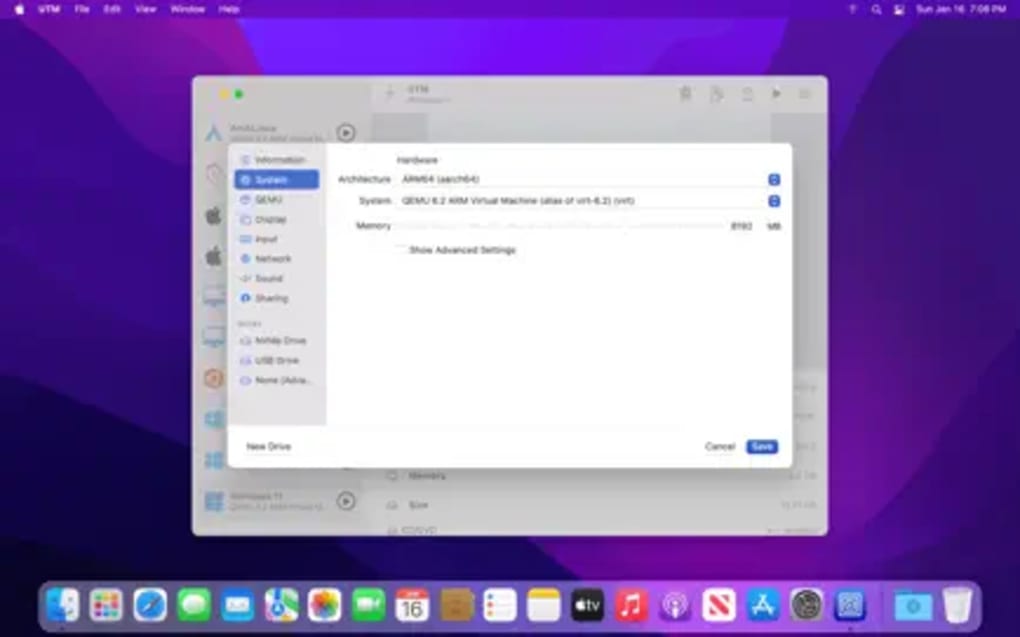
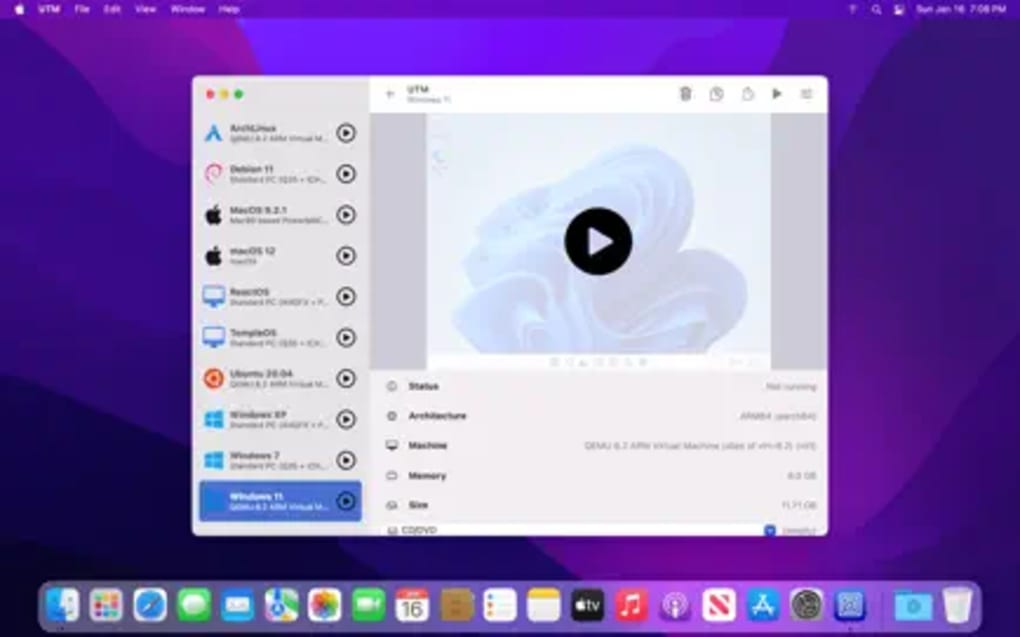
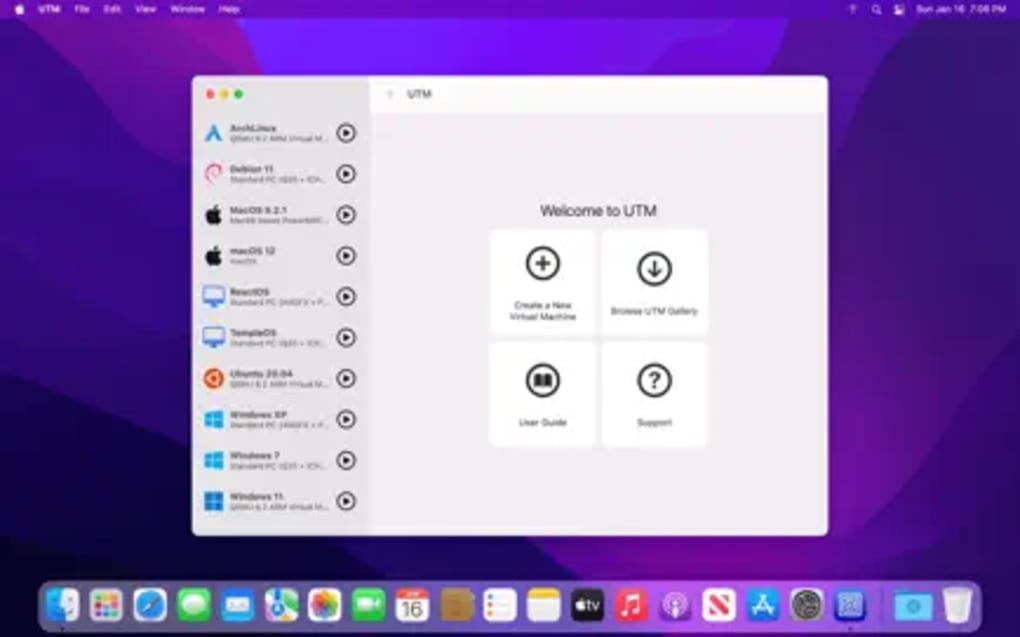
Once installed, launch UTM. The initial setup wizard walks you through creating your first virtual machine. Choose a template based on the operating system you plan to install—Windows, Linux, or macOS. You’ll then be prompted to allocate resources: select the number of CPU cores (typically 2‑4 for most workloads), RAM (minimum 2 GB for lightweight Linux, 4‑8 GB for Windows 10/11), and storage size (a 30 GB virtual disk is a good starting point). For Apple Silicon users, enable the “Apple Virtualization” toggle to take advantage of hardware acceleration.
After configuring hardware, attach an ISO image of the guest OS. UTM supports drag‑and‑drop of ISO files directly onto the VM configuration window. Once the ISO is attached, click “Save” and then “Start.” The virtual machine boots from the ISO, and you can proceed with a typical OS installation—just as you would on a physical computer. During installation, you can map a shared folder (found under “Sharing” in the VM settings) to facilitate file transfers later.
Post‑installation, UTM’s toolbar offers quick actions: pause, resume, reset, and snapshot. Use the “Snapshot” button to capture a clean state after OS setup; this is especially useful before installing additional software. Network configuration defaults to NAT, providing internet access for the guest. Advanced users can switch to bridged networking for direct LAN visibility, which is helpful for testing server applications.
Regular maintenance is handled through the built‑in updater. When a new version is available, a notification appears in the menu bar. Clicking “Update” downloads and installs the latest build, ensuring you stay protected against emerging vulnerabilities. For power users, UTM also supports command‑line management via the “utmctl” utility, allowing scripting of VM creation, start, and stop operations—ideal for automated testing environments.
In summary, the installation process is designed to be as frictionless as possible, while the setup wizard and intuitive UI guide users through every step of VM creation. Whether you are a newcomer to virtualization or a seasoned IT professional, UTM provides a clear path from download to a fully operational virtual machine in under ten minutes.
Compatibility, Pros & Cons
Operating System Compatibility
UTM Virtual Machines runs on macOS 10.13 (High Sierra) and later, including macOS 12 Monterey, macOS 13 Ventura, and the upcoming macOS 14 releases. The application is optimized for both Intel‑based Macs and Apple Silicon (M1, M2, and future ARM‑based models). On Apple Silicon, UTM leverages the native hypervisor framework for accelerated performance, while on Intel Macs it falls back to QEMU’s traditional emulation, still delivering acceptable speeds for most tasks. Compatibility with the latest macOS security features, such as notarization and Gatekeeper, ensures a smooth installation experience without requiring work‑arounds.
Pros
- Free core version: No licensing fees for essential virtualization features.
- Apple Silicon support: Near‑native performance on M1/M2 Macs.
- Secure sandboxing: Guest OS cannot affect host stability.
- Rich feature set: Snapshots, shared folders, multiple display modes.
- Multi‑language UI: English, Chinese, Korean support.
- Regular updates: Automatic patching and new feature releases.
- Open‑source foundation: Built on QEMU, benefitting from community contributions.
Cons
- Limited official technical support for the free version; users rely on community forums.
- Advanced networking (e.g., bridged mode) may require manual configuration.
- Performance on older Intel Macs can be slower compared to commercial solutions.
- No built‑in remote desktop client; requires third‑party tools for remote access.
- Graphical acceleration for Windows guests is still evolving on Apple Silicon.
Weighing these advantages against the drawbacks, UTM Virtual Machines emerges as a compelling choice for most macOS users who need a reliable, cost‑effective virtualization solution. The free core offering covers the majority of everyday scenarios, while power users who require enterprise‑grade support can consider the paid upgrade that adds priority assistance and advanced networking modules.
Frequently Asked Questions
Can I run Windows 11 on an M1 Mac with UTM?
Yes. UTM supports ARM‑based Windows 11 images on Apple Silicon. After downloading the Windows 11 ARM ISO, create a new VM, enable Apple Virtualization, allocate at least 4 GB RAM, and follow the standard installation steps. Performance is comparable to native Windows on M1 hardware, though graphics‑intensive workloads may still benefit from native Windows on ARM.
Is UTM safe to use with sensitive data?
Absolutely. Each virtual machine runs in a sandboxed environment isolated from the host macOS. The sandbox prevents malicious code inside a guest OS from accessing host files unless you explicitly enable shared folders. Additionally, UTM is notarized by Apple, ensuring it meets macOS security standards.
Do I need to pay for updates?
No. The core version of UTM is free and receives regular updates through the built‑in updater. A paid “Pro” license is optional and provides priority support, advanced networking features, and early access to beta releases, but it is not required for receiving security patches.
Can I import existing virtual disk files (e.g., .vdi, .vmdk) into UTM?
Yes. UTM can import common virtual disk formats such as .vdi, .vmdk, and .qcow2. During VM creation, choose “Import Disk” and select the existing file. The app will convert it if necessary and attach it to the new virtual machine.
Is there a way to run UTM headlessly (no GUI) for server automation?
UTM includes the “utmctl” command‑line tool, which lets you create, start, stop, and manage VMs without launching the graphical interface. This is ideal for automated testing pipelines or server environments where a GUI is unnecessary.
Conclusion & Call to Action
UTM Virtual Machines delivers a powerful, free, and secure virtualization experience tailored for macOS users across Intel and Apple Silicon platforms. Its robust feature set, combined with regular updates and a friendly UI, makes it a top contender for anyone needing to run Windows, Linux, or other operating systems on a Mac. Whether you’re a developer testing cross‑platform software, an IT professional maintaining legacy tools, or a student exploring new OS environments, UTM provides the flexibility you need without the hefty price tag of commercial alternatives.
Ready to unleash the full potential of your Mac? Download UTM Virtual Machines now and start building your virtual environments today. Experience secure, high‑performance virtualization—free of charge.







